


Updated September 16, 2026.
Metal keys still run a surprising number of workplaces, and they carry problems that don't show up until someone leaves the company with a copy of the front door key nobody remembered to collect. A door access control system for office spaces exists to make those problems go away — permissions are digital, revocation takes seconds, and every entry is logged.
This guide walks through what the components actually do, how to think about cloud versus on-premise, where budgets tend to blow up, and the buyer questions that separate a good deployment from a painful one. It draws on the DHS SAVER program's Access Control Technologies Handbook for the underlying technology descriptions and considerations, and calls out where practical choices depend on your building, your jurisdiction, and your threat model.
Why Offices Move Away From Keys
Mechanical keys have real limitations that get worse as an office grows. They can be duplicated at most hardware stores. They don't record who entered or when. When an employee or contractor leaves, the only certain remedy is rekeying affected doors. And the "master key" that solves one convenience problem creates a much bigger one if it goes missing.
Electronic access control addresses these directly. Per the DHS handbook, one of the core objectives of access control is to "maintain records of access control system activity, user permissions, and facility configuration changes" — which is exactly the audit trail keys can't give you. Credentials can be issued, restricted to certain doors or hours, and revoked remotely without touching the hardware.
What "Access Control" Actually Means
The DHS handbook identifies four main elements of any access control system:
- A barrier (door, gate, turnstile)
- Verification equipment (card reader, biometric scanner, keypad)
- A panel that controls the barrier
- The communications infrastructure connecting these elements to monitoring and alarm systems
Credential types generally fall into three families:
- Tokens — key cards, fobs, and mobile credentials the user carries
- Cipher / PIN systems — a code entered on a keypad
- Biometrics — fingerprint, facial, iris, vascular, or other physical/behavioral measurements
Most offices end up combining these — for example, mobile or card credentials as the primary method with a keypad option for guests or as a fallback. Which combination fits depends on traffic volume, sensitivity of the area, and how much friction users will tolerate.
If the permission model side of this matters for your compliance situation — who assigns access and how roles are structured — we broke that down in three main models of access control.
Components You'll Actually Be Buying
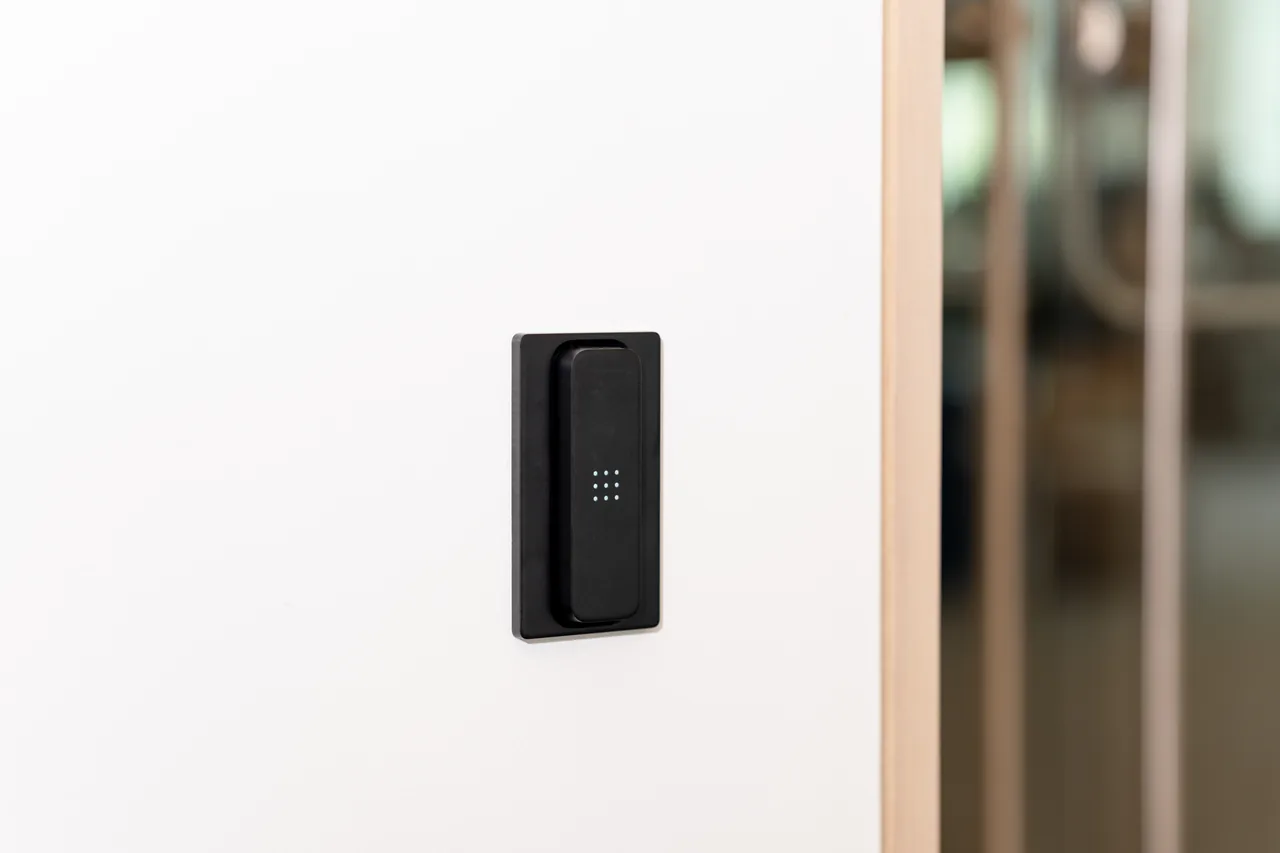
Readers at the door. Weatherized on exterior doors, mounted outside the controlled space, communicating back to a controller. Options range from simple prox card readers to multi-technology units that accept cards, PINs, mobile, and biometrics.
Electric locking hardware. Magnetic locks (fail-safe: unlock when power is removed) and electric strikes (fail-secure: stay locked when power is removed) are the two most common choices, as described in Avigilon's door access control buyer's guide. Which you need depends on the door type, the direction of egress, and — importantly — local fire and life-safety code.
Controllers. The decision-making layer. Traditional systems house controllers in a network closet; cloud-native systems use smaller edge devices at the site with the management logic in the vendor's cloud.
Credentials. Cards, fobs, mobile passes, or enrolled biometrics.
Management software. Where administrators add users, set schedules, pull audit logs, and configure integrations.
If you want to see what a fully integrated stack looks like when set up for a commercial workspace, Monarch's office and government solutions page walks through the layout — cameras, access, alarms, and how the pieces talk to each other.
Cloud vs. On-Premise: The Decision You Live With
On-premise access control keeps the management server in your building. Your IT team is responsible for patches, backups, and uptime. This model still fits organizations with strict air-gap requirements or existing infrastructure investments they aren't ready to retire.
Cloud-native access control runs the management platform in the vendor's cloud, with edge devices handling door decisions locally. Updates are pushed by the vendor. Administrators log in from a browser. Multi-site management is straightforward from a single dashboard.
Practical trade-offs to weigh:
- Ongoing cost shape. Cloud shifts spending from upfront hardware to recurring subscription. On-prem front-loads the cost but adds staff time for maintenance.
- Internet dependence. Most cloud systems cache credentials locally so doors keep working during an outage, but real-time remote management pauses until connectivity returns. Confirm this behavior in writing with any vendor.
- Update discipline. A cloud vendor patching centrally is different from an on-prem server that only gets touched when something breaks. If your IT team isn't set up to actively maintain a Windows server, that's a real risk factor.
- Integrations. Cloud platforms generally have more current APIs to identity providers, HR systems, and video platforms.
There isn't one right answer. For most offices under a few hundred doors and without an air-gap requirement, cloud is simpler to operate. Run a five-year total-cost comparison with real quotes before deciding.
Budgeting Without the False Precision
Real quotes vary widely by door type, existing infrastructure, and local labor rates, so instead of made-up numbers, here are the cost drivers that actually move the total:
- Door prep. Old wood doors, hollow metal doors, and full-glass storefronts all require different (and differently priced) hardware. Glass storefronts and code-compliant electrified panic hardware sit at the top of the range.
- Cabling and power. Running low-voltage cable to a reader location through finished walls or concrete costs more than pulling it through an accessible ceiling. Power at the door is another variable.
- Fire and life-safety code compliance. If existing egress hardware isn't compliant with the current code (see NFPA 101 and the International Building Code as adopted in your jurisdiction), retrofitting can add substantially to the per-door cost.
- Number of doors and users. Per-door costs typically drop at higher door counts because controllers and infrastructure amortize.
- Recurring software. Cloud platforms charge monthly per door or per reader; ask each vendor for the pricing model in writing.
- Credentials. Physical cards have a per-unit cost; mobile credentials are usually bundled but sometimes metered.
The single most effective way to prevent budget surprises is a proper site walk before signing — someone who opens doors, checks hinge types, pulls a ceiling tile, and looks at the electrical situation at each planned reader location.
Which Doors Actually Need Readers
Not every door should be controlled. Avigilon's guide notes that different entryways serve different traffic patterns and security roles, and the equipment should match the use case.
Doors that typically justify access control in an office:
- Main and after-hours entrances
- Server rooms and IT closets (often required for compliance)
- HR file storage and any room with sensitive employee records
- Secure storage — inventory, samples, high-value assets
- Executive suites, depending on threat model
- All exterior doors, especially side and loading-dock doors
Doors that usually don't need controlled access:
- Interior offices without sensitive materials
- Standard conference rooms (a room-booking system is a better fit)
- Break rooms, kitchens, restrooms
If a vendor's proposal puts a reader on every interior door, ask them to justify each one against a specific risk.
Integrations Where Value Compounds
Access control gets more useful the moment it talks to the rest of your building's systems. The DHS handbook describes this integration layer as part of the assessment and response function — for example, using CCTV so security personnel can visually assess an entry alarm rather than dispatching someone blind.
Integrations worth asking every vendor about:
- Video surveillance. Access events (granted, denied, forced, held open) linked to camera clips so an alarm review is one click, not a hunt through timestamps.
- Identity providers. Google Workspace, Microsoft Entra ID, Okta. New hires get provisioned by role; departures revoke automatically. This is where the "we forgot to disable that badge" incidents come from when it isn't wired up.
- Visitor management. Temporary credentials for guests that expire on a schedule, so nobody props a door open to let a client back in.
- HR systems. Termination in the HR system should trigger revocation at every door. Confirm which systems the vendor integrates with natively versus through a middleware layer.
- Intrusion alarms. Arming/disarming tied to access events (last-out arms, first-in disarms) is a common and useful pattern.
When comparing platforms, ask for a list of native integrations and their setup requirements — not just marketing logos on a slide.
Mistakes That Cost Real Money
Buying based on the reader's appearance. The reader is the visible part, but the platform, integrations, and vendor roadmap matter more. Pick the platform first.
Skipping fire and life-safety code review. Egress doors have specific requirements that vary by jurisdiction and door type — delayed egress, stairwell reentry, panic hardware, and fail-safe behavior on fire alarm are all governed by codes like NFPA 101 and the IBC as locally adopted. A hypothetical example: a mag lock installed on a required egress door without the correct release hardware could fail an inspection and force a rework. Get an integrator who documents code compliance for each door in writing.
No plan for guest access. If visitors require full enrollment, staff will start propping doors. Confirm the temporary credential workflow before signing.
Ignoring the audit log. The log is one of the highest-value features and is worthless if nobody reviews it. Set a recurring review — even a brief quarterly scan catches unusual patterns.
Under-sizing for growth. If your credential pool or door count is near a pricing tier, hiring waves and expansions get expensive fast. Ask for pricing at 2x current headcount.
Forgetting the request-to-exit sensor. On many door configurations, a REX sensor prevents a "door forced" alarm every time someone leaves. It's inexpensive and easy to omit; don't let it be omitted.
Treating physical access control as separate from cybersecurity. The management platform is a business system with admin logins, employee data, and network access. It needs MFA, least-privilege admin roles, and offboarding tied to your identity provider — the same discipline you'd apply to any SaaS.
Deployment Timeline: What "Normal" Looks Like
A rough shape of the schedule, so you know when a vendor is overpromising:
- Site walk and design. Physical inspection of each door, wiring paths, power availability, and code considerations. Output: a design document with hardware per door and a quote.
- Procurement. Hardware lead times vary; cloud licenses can be provisioned quickly.
- Installation. Cabling, hardware mounting, and commissioning. A small office may be a few days of physical work; a larger campus takes weeks.
- Configuration and enrollment. User provisioning from the identity provider, credential issuance, schedules, integration testing, code testing witnessed as required, and admin training.
Straightforward small-office projects commonly land in the several-week range; larger deployments or those requiring fire-code retrofits run longer. A promise of a two-week turnaround for anything nontrivial usually means the site walk or code review is being skipped.
Buyer Questions to Bring to Every Vendor
- How does the system behave during an internet outage — specifically, do cached credentials still authenticate at the door?
- What's the pricing model, and what does it look like at 2x our current door count and headcount?
- Which HR systems, identity providers, and video platforms do you integrate with natively? Which require middleware?
- How do you handle fire and life-safety code compliance? Will you document per-door compliance in writing?
- What's the temporary credential workflow for visitors and contractors?
- What are the admin roles and MFA options for the management platform?
- If we leave you in three years, what happens to our data, our credentials, and our hardware?
- Can you provide references from offices of similar size and door count?
Contact Monarch with the site requirements to discuss the next step.
FAQ
How much does a door access control system for office cost per door?
Per-door cost varies with door type, existing infrastructure, and local labor. The main drivers are door prep (glass storefronts and code-compliant panic hardware sit at the high end), cabling and power runs, whether fire-code retrofits are needed, and the ongoing software subscription. Ask each vendor for a written quote after a site walk, and compare five-year total cost — not just the upfront number.
Can we keep our existing doors?
Usually yes. Readers and electric locking hardware are added to existing doors. Exceptions include old wood doors that need reinforcement, all-glass storefronts that need specialized hardware, and egress doors where existing hardware isn't code-compliant. A proper site walk before purchase flags these.
What happens if the internet goes down?
Most cloud access control systems cache credentials locally on the edge controller, so doors keep authenticating during an outage. Real-time remote management pauses until connectivity returns, and queued events sync when the connection restores. Confirm this offline behavior with any vendor before signing — the specifics differ by product.
Do we need to notify employees before installing biometric readers?
Yes, and depending on your jurisdiction, specific written notice and consent requirements may apply. Illinois's Biometric Information Privacy Act (BIPA), Texas's Capture or Use of Biometric Identifier statute (CUBI), and biometric provisions in state privacy laws in Washington and elsewhere all impose different obligations. Consult counsel for your specific state before enrolling employees, and consider offering a non-biometric credential option regardless.
How do we handle contractors and temporary workers?
Issue temporary credentials — mobile passes or cards — restricted to specific doors and hours, with an automatic expiration date. This avoids the collect-the-badge problem at project end.
Can access control integrate with our HR system to auto-revoke terminated employees?
Many cloud platforms integrate with common HR and identity systems so that termination triggers credential revocation across all doors. Which systems are supported natively versus via middleware varies by vendor — ask specifically about the HRIS and identity provider you use, and ask how quickly revocation propagates.
What's the difference between access control and smart locks?
Consumer smart locks are single-device products typically managed by one or a few users without centralized audit logging, enterprise integrations, or code-compliant egress hardware for commercial buildings. A commercial door access control system provides centralized user management, detailed audit trails, integrations with business systems, and hardware designed to meet commercial life-safety code. Smart locks may suit a single-door small office; anything larger warrants purpose-built access control.
How long does deployment take?
A straightforward small-office project (a handful of doors) commonly runs several weeks from contract to go-live, including site design, procurement, installation, and enrollment. Larger sites or projects requiring fire-code retrofits take longer. Vendors promising very short turnarounds for nontrivial projects are usually skipping the site walk or code-compliance step.